


ArcGIS License Manager 无法启动 - Sorry, this application cannot run under a virtual machine
内容提要
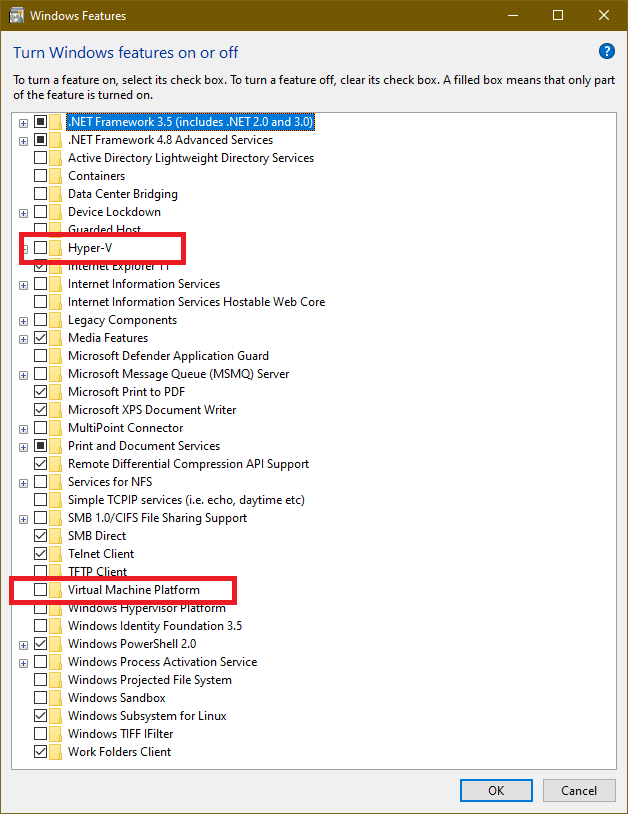
ArcGIS 10.6安装时License Manager服务无法启动,常规方法无效。检查发现Hyper-V和Virtual Machine Platform功能开启导致问题,关闭并重启后服务可正常启动。作者分享此解决方案,并询问是否只需关闭Virtual Machine Platform即可。
延伸解读
问题根源:虚拟化功能冲突
文章指出,ArcGIS License Manager 无法启动的报错“Sorry, this application cannot run under a virtual machine”与 Windows 的虚拟化功能有关。作者发现,关闭 Hyper-V 和 Virtual Machine Platform 后重启,服务即可正常启动。这表明 ArcGIS 的许可管理器可能检测到虚拟化环境并拒绝运行,而这两个功能可能被误判为虚拟机环境。
排查步骤与验证
作者通过命令行运行 lmgrd.exe -z -c service.txt 定位到具体报错,并依次尝试卸载 VMWare、关闭 Hyper-V,均无效。最终在 Windows 功能中关闭 Virtual Machine Platform 并重启后成功。这提示读者,遇到类似问题时,应优先检查 Windows 可选功能中的虚拟化组件,而不仅仅是常见的 Hyper-V。
注意事项与待验证点
作者明确表示不确定是否只需关闭 Virtual Machine Platform 即可,因为其测试中同时关闭了 Hyper-V。因此,读者在尝试时,可以先单独关闭 Virtual Machine Platform 并重启,若无效再关闭 Hyper-V。此外,关闭这些功能可能影响其他依赖虚拟化的应用(如 Docker、WSL2),操作前需权衡。
Q&A
ArcGIS License Manager 服务无法启动,常规方法无效,可能是什么原因?
可能是 Windows 系统中开启了 Hyper-V 和 Virtual Machine Platform 功能,导致 lmgrd.exe 报错 'Sorry, this application cannot run under a virtual machine',从而无法启动服务。
如何解决 ArcGIS License Manager 在虚拟机环境下无法启动的问题?
关闭 Windows 功能中的 Hyper-V 和 Virtual Machine Platform,然后重启电脑,再尝试启动 ArcGIS License Manager 服务。
ArcGIS License Manager 启动失败,提示 'Sorry, this application cannot run under a virtual machine' 怎么办?
该提示表明 lmgrd.exe 检测到虚拟机环境。可以尝试关闭 Hyper-V 和 Virtual Machine Platform 功能,重启后再次启动服务。如果只关闭 Virtual Machine Platform 有效,则无需卸载 Hyper-V。
关闭 Hyper-V 和 Virtual Machine Platform 后,ArcGIS License Manager 服务能正常启动吗?
根据文章,关闭这两个功能并重启后,ArcGIS License Manager 服务可以正常启动。但文章作者不确定是否只需关闭 Virtual Machine Platform 即可,因为单独关闭 Hyper-V 无效。
ArcGIS 10.6 安装时 License Manager 服务无法启动,除了常规方法还有什么办法?
除了常规方法(如替换 service.txt 和 ARCGIS.exe),可以检查 Windows 功能,关闭 Hyper-V 和 Virtual Machine Platform,然后重启电脑,再尝试启动服务。
为什么 ArcGIS License Manager 在虚拟机中无法运行?
因为 lmgrd.exe 检测到虚拟机环境,会报错 'Sorry, this application cannot run under a virtual machine'。这通常与 Windows 的 Hyper-V 或 Virtual Machine Platform 功能有关。
